
 Add to Chrome
How to Use Gemini for Free
Shaper includes free access to basic AI models like ChatGPT-5 Nano and Deep Seek R1 through Pollinations. However, premium models let you do more complex tasks, faster and better, such as making complex website changes and building custom apps & extensions.
To use premium AI models in Shaper, you'll need to add an API key from your provider. This guide walks you through creating a Google Gemini API key and adding it to Shaper.
Good news: Google Gemini offers a generous free tier with no credit card required! You can use models like Gemini 2.5 Flash and Gemini 3.0 Flash for free with rate limits, making it perfect for getting started with premium AI capabilities in Shaper.
Getting Started
-
Open Google AI Studio Visit Google AI Studio and log in using an existing Google account or sign up for a new account.
Tip: Use the same Google account you prefer for development or AI projects to keep everything organized.
-
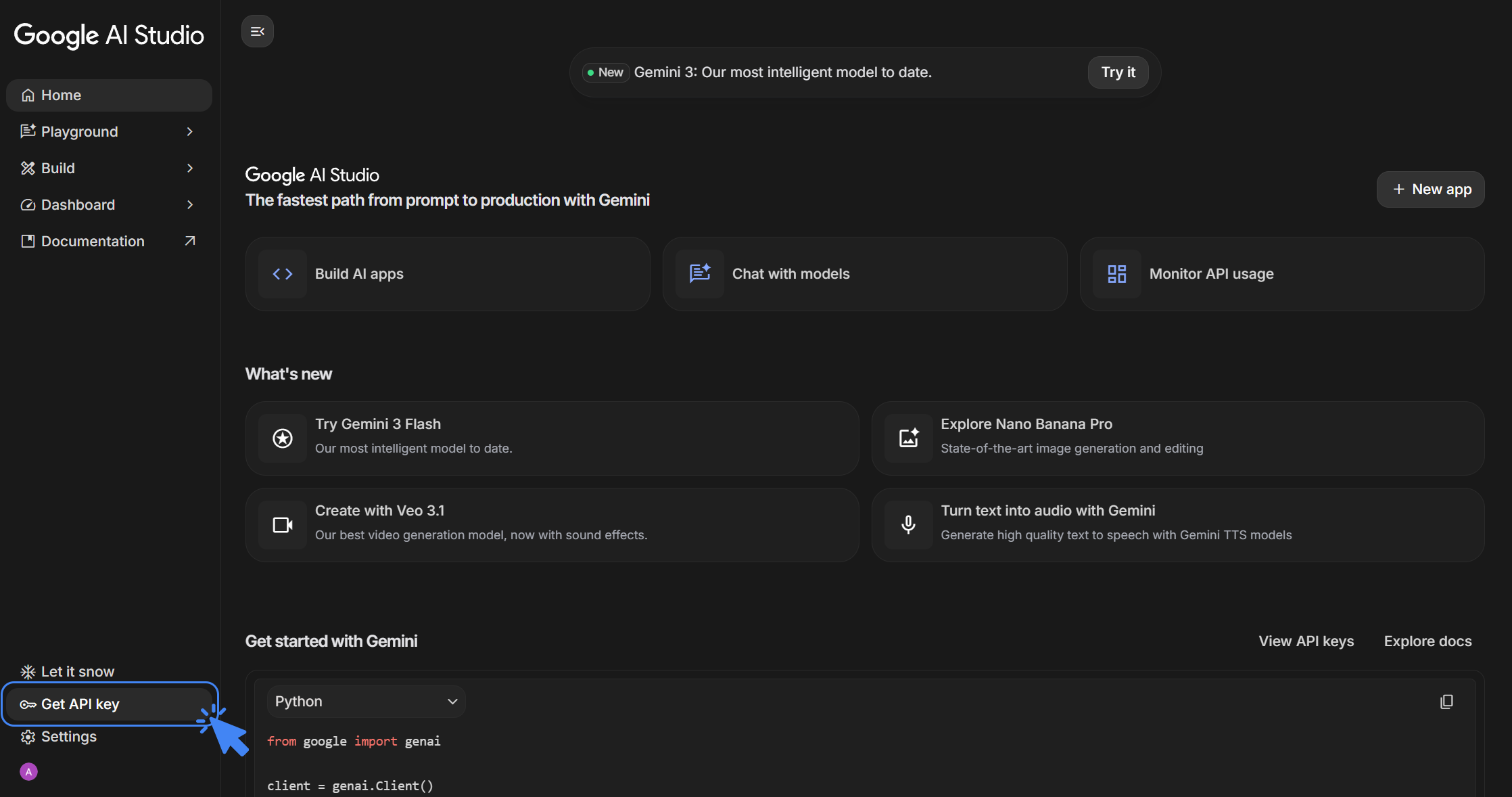
Navigate to API Keys Once logged in, look for "Get API key" in the left sidebar. Click on it to access the API key management page, or visit the direct link: https://aistudio.google.com/api-keys
Creating Your API Key
-
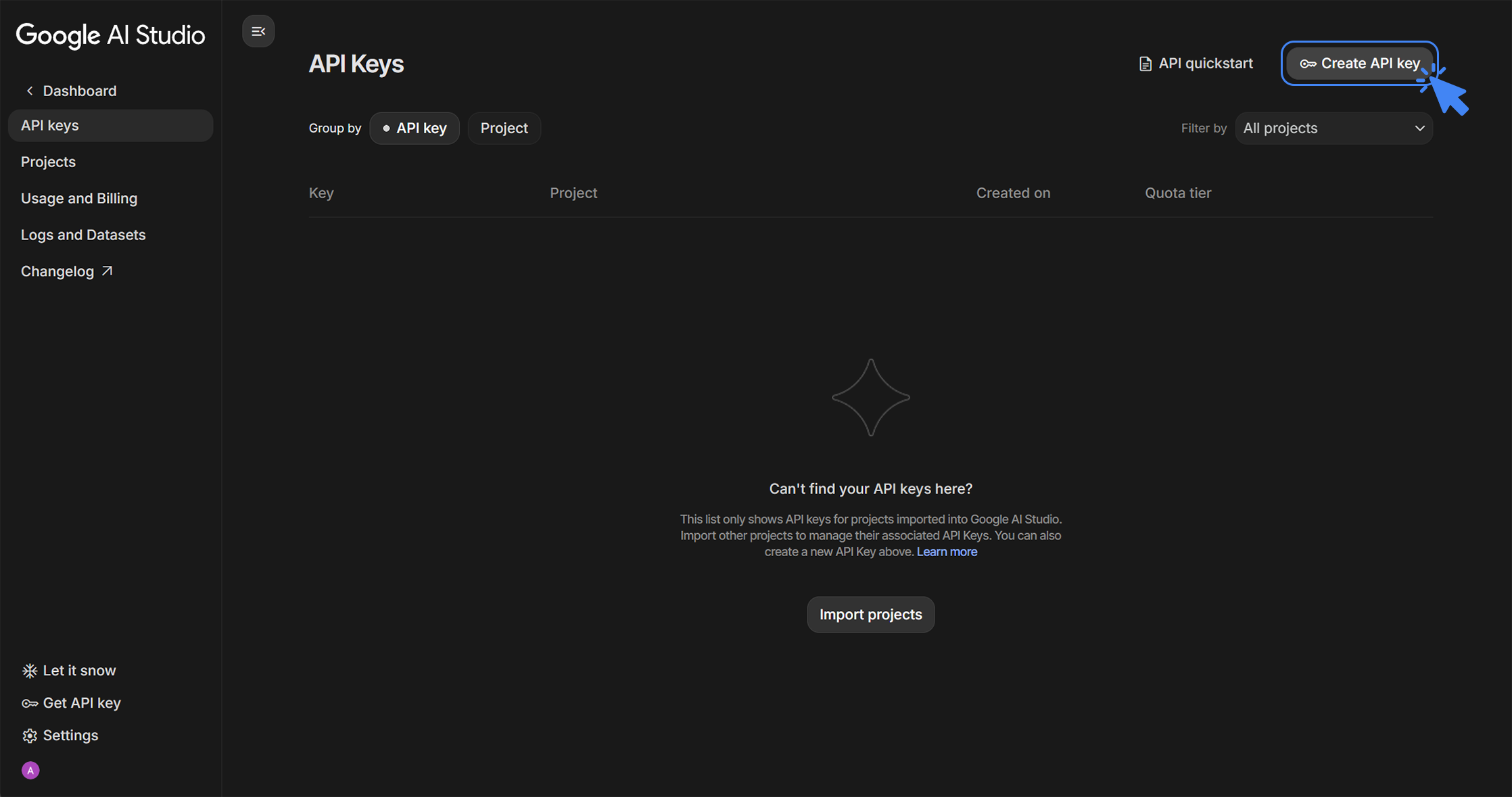
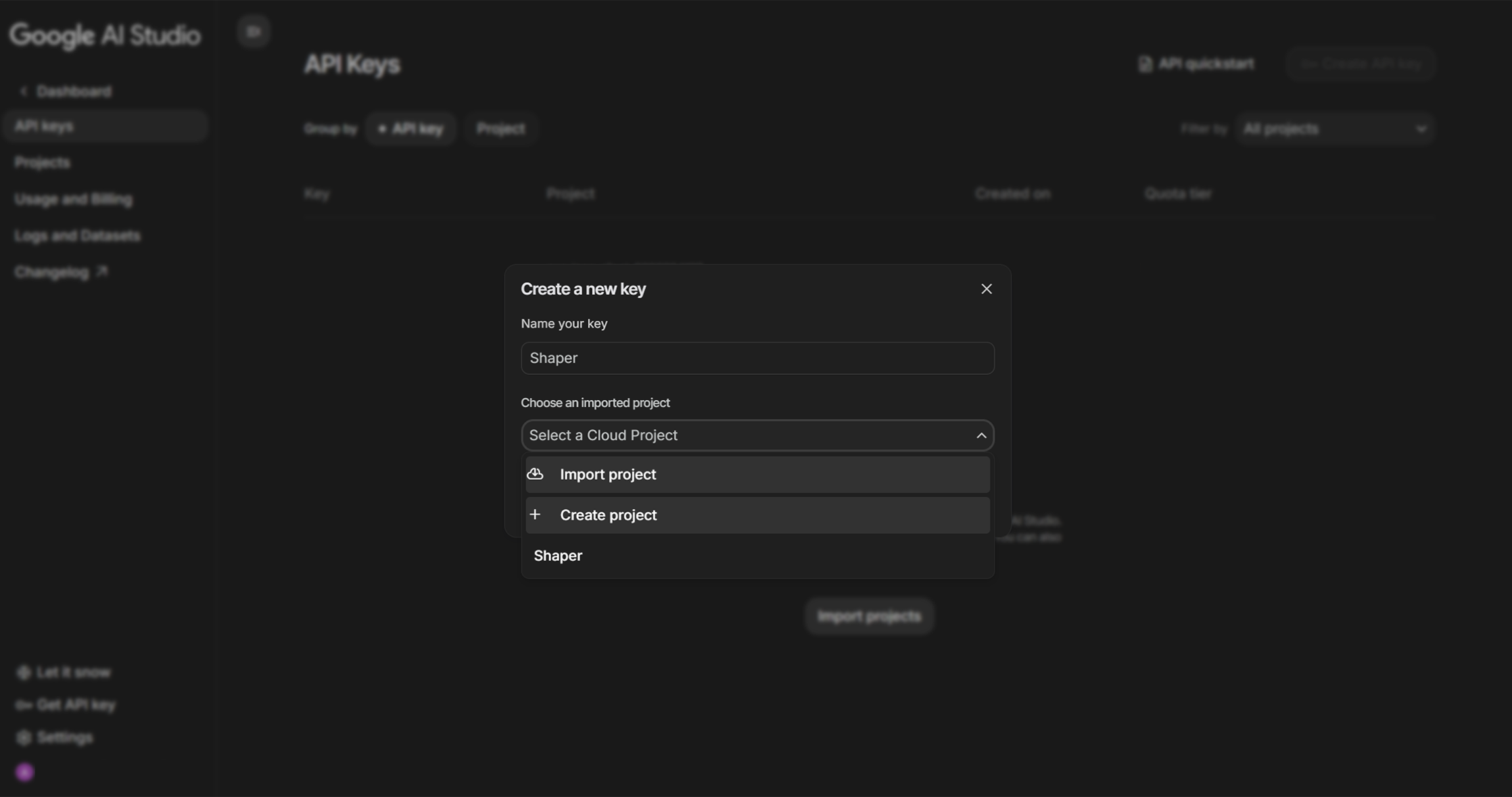
Generate your API key Click the "Create API key" button in the top right corner. You'll be prompted to name your key and select a Google Cloud project or create a new one.
Options:
- Create API key in new project - Recommended for first-time users. This automatically sets up everything you need.
- Create API key in existing project - If you already have a Google Cloud project you want to use.
Tip: Use a descriptive name for your key and project that helps you remember where this key is being used.
-
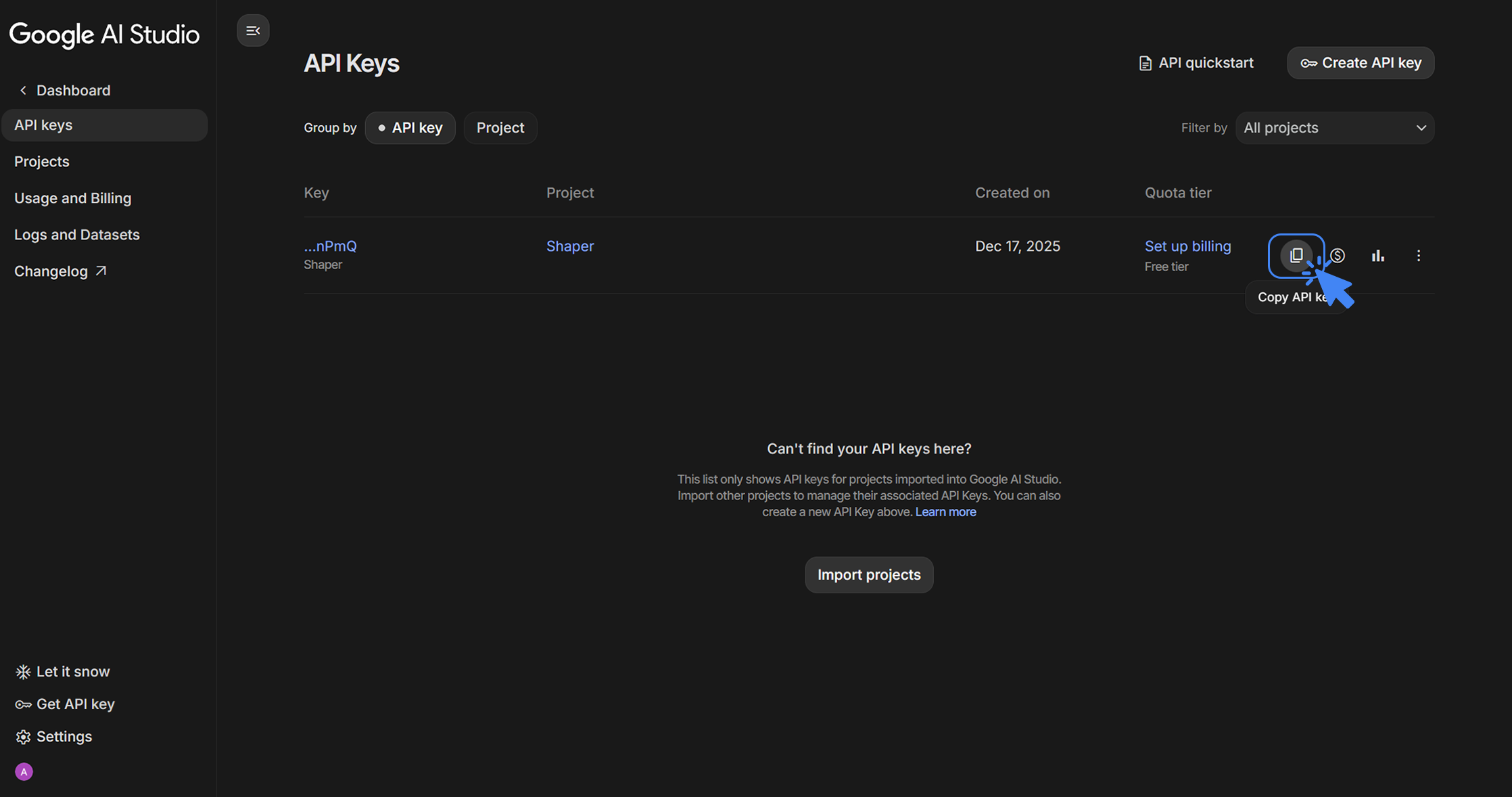
Save your API key securely Your unique API key will be displayed immediately after creation. Copy this key by selecting the "Copy API Key" button and store it in a secure place like a password manager.
Important: While you can view this key again later in Google AI Studio, it's best practice to save it securely right away.
Understanding Free Tier Limits
Gemini API comes with a generous free tier and does not require a credit card to start using. Here are the rate limits for popular free tier models:
| Model Name | Requests Per Day | Requests Per Minute | Tokens Per Minute | Recommended For | Ideal Shaper Features |
|---|---|---|---|---|---|
| Gemini 2.5 Flash Lite | 20 | 10 | 250K | Quick responses, simple queries, basic chat interactions | Chat conversations, simple text generation, low complexity website changes |
| Gemini 2.5 Flash | 20 | 5 | 250K | Balanced performance, general-purpose tasks, moderate complexity | Website changes, building simple custom apps, content editing |
| Gemini 3.0 Flash | 20 | 5 | 250K | Advanced reasoning, complex tasks, latest capabilities | Building custom apps & extensions, complex website changes, long-form content analysis |
Understanding Rate Limits:
- Requests Per Day: The hard ceiling on daily usage (most critical for free users)
- Requests Per Minute: How many times you can call the API in 60 seconds
- Tokens Per Minute: The total volume of tokens (input + output) processed per minute
These free tier limits are perfect for moderate usage. For higher usage needs, you can set up billing.
Setting up Billing (Optional)
If you'd like to access higher usage limits and additional models, you can set up billing for your API key:
- Visit Google Cloud Console
- Select your project and navigate to "Billing"
- Set up a billing account and enable the Gemini API
- Configure usage limits and budgets to control costs
Tip: Set up budget alerts to avoid unexpected charges.
Connecting to Shaper
-
Open the Shaper chrome extension.
-
Navigate to Settings Tap the gear (⚙️) icon in the top navigation bar to access Settings. Find the "AI Provider" section.
-
Add your Gemini API key Select "Google Gemini" as your AI provider. Paste the API key you saved in step 4 into the "Google Gemini API Key" field. Select "Test API Key" to ensure your key is valid and working.
-
Select your preferred model You can further explore Gemini models and compare their capabilities on their official website https://ai.google.dev/gemini-api/docs/models.
What Happens Next
Shaper is now connected to OpenAI! You can now:
- Make complex website modifications that need longer context windows.
- Build complex custom apps and extensions.
- Pass long articles and web content to AI in chat.
Troubleshooting Common Issues
- Key not working? Double-check that you copied the entire key without any extra spaces or characters.
- Errors while using Shaper? Ensure you have sufficient credits and your payment method is valid in your OpenAI account.
- Connection failed? Try removing and re-adding the API key in settings.
If you continue to experience issues, reach out to us here and we'll be happy to help.