
 Add to Chrome
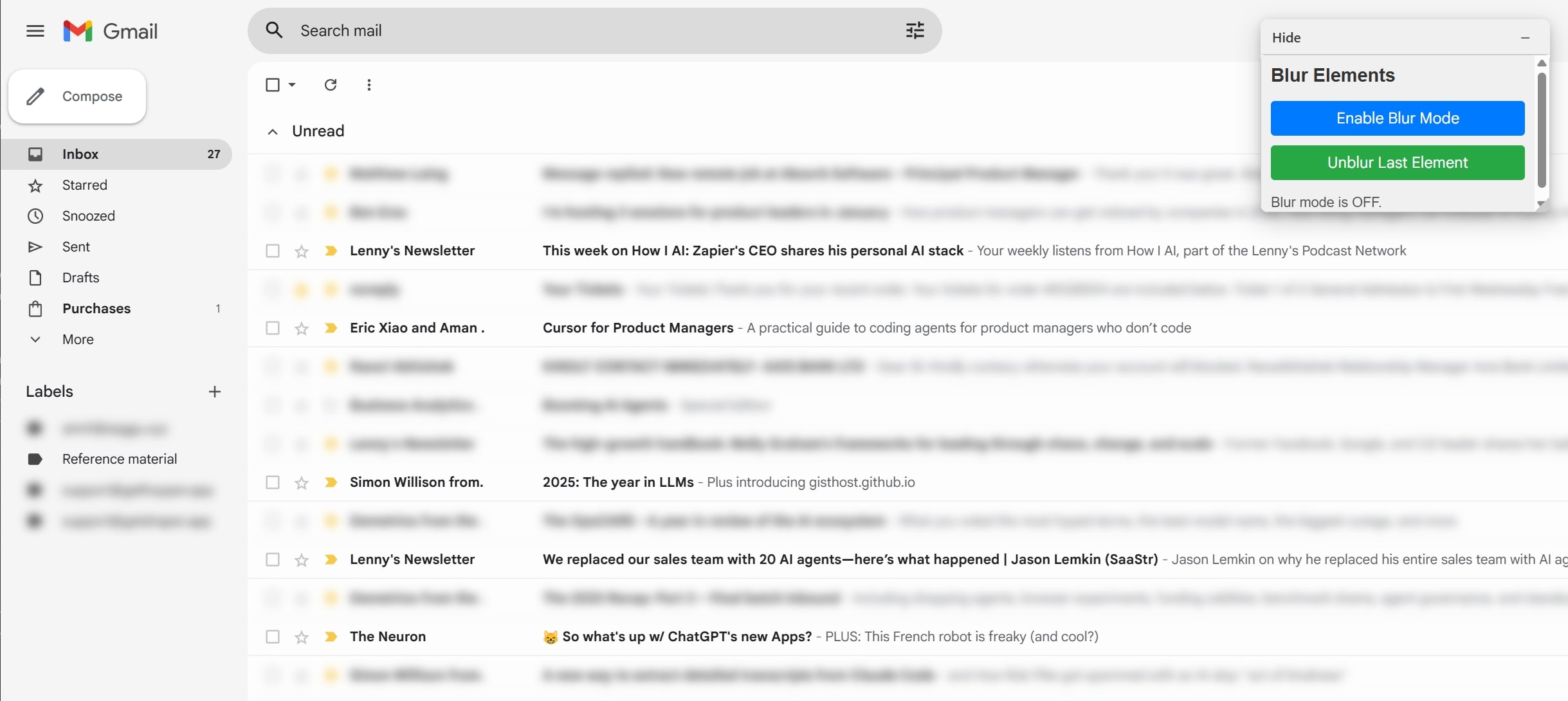
Blur UI Elements
Click to blur any element on a webpage. Perfect for hiding sensitive information during screen recordings, presentations, or screenshots.
Extension
What This Does
This doodle lets you selectively blur any element on a webpage with a simple click. Whether you're recording a demo, taking a screenshot, or sharing your screen in a meeting, you can quickly hide sensitive information like credit card details, API keys, phone numbers, or any other private data you don't want visible.
- One-Click Privacy: Enable blur mode and click any element to instantly blur it
- Visual Feedback: Hover over elements to see what you're about to blur with an orange outline
- Keyboard Shortcut: Use Ctrl + Shift + B to quickly toggle blur mode on and off
How to Use
- Click the "Add to Shaper" button to add this doodle to your browser in one-click
- A floating "Hide" panel will appear
- Click "Enable Blur Mode" or press Ctrl + Shift + B to activate blur mode
- Hover over any element you want to blur - it will be highlighted with an orange outline
- Click the element to blur it immediately
- Repeat for any additional elements you want to hide
- Click "Disable Blur Mode" or press Ctrl + Alt + B again when you're done selecting
- If you need to undo, click "Unblur Last Element" to remove blurs in reverse order
Use Cases
- Screen Recording Demos: Hide sensitive user data, API keys, or internal information when recording product demos or tutorials
- Video Presentations: Blur confidential details during live presentations or webinars
- Screenshot Sharing: Quickly hide private information before taking screenshots to share with colleagues or on social media
- Customer Support: Blur sensitive customer data when sharing your screen during support calls
- Bug Reporting: Blur sensitive context when capturing screenshots for bug reports
- Social Media: Share interesting web content without accidentally exposing private information
- Compliance: Ensure GDPR, HIPAA, or other privacy compliance when sharing screens