
 Add to Chrome
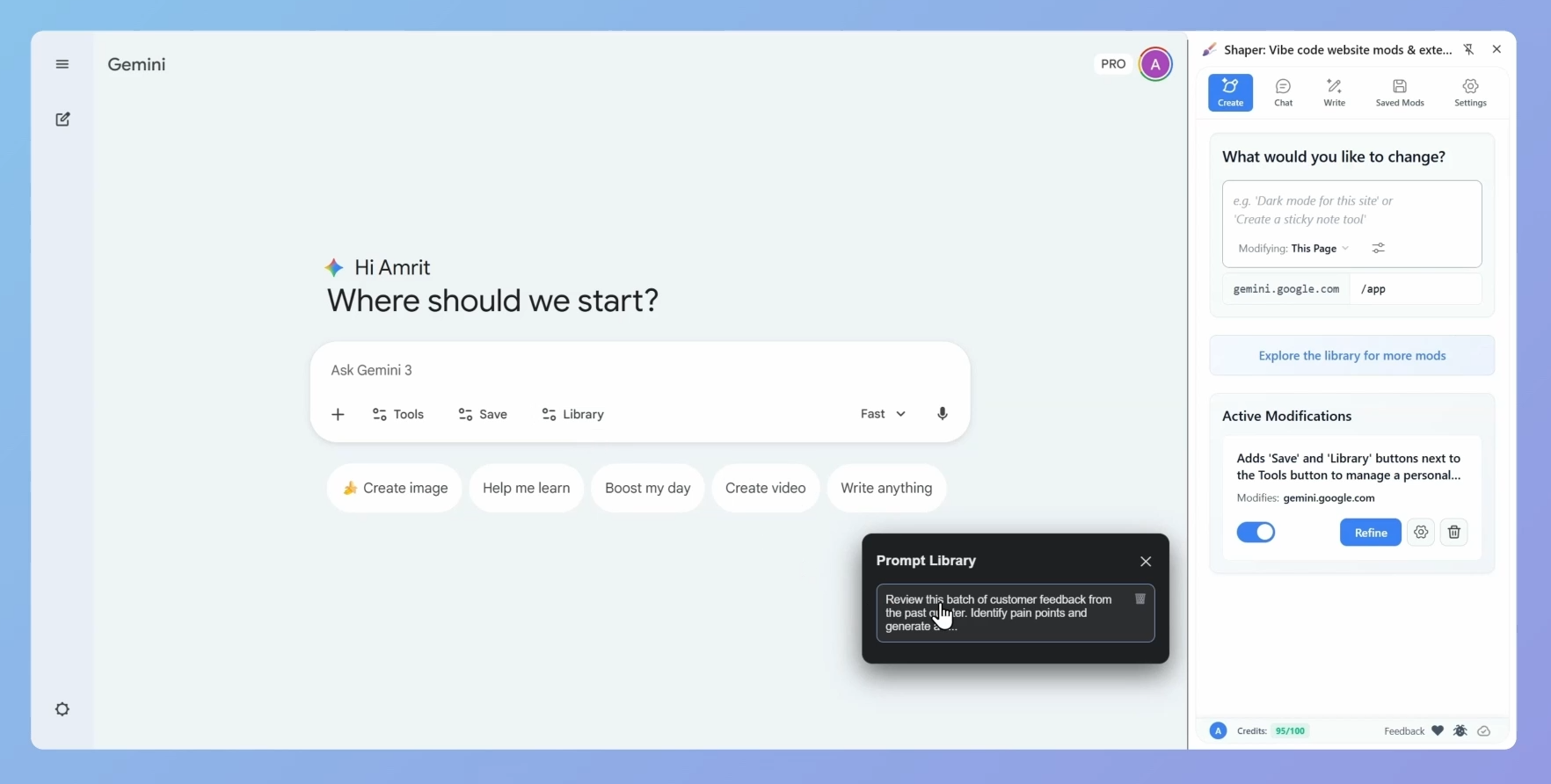
Adds a Prompt Library to Gemini
Adds 'Save' and 'Library' buttons next to the Tools button to manage a personal prompt library that persists in local storage.
Productivity
What This Does
This modification adds convenient "Save" and "Library" buttons to the Gemini chat interface, allowing you to build and manage a personal collection of frequently used prompts. Your prompts are stored in your browser's local storage and persist across sessions.
How to Use
- Click the "Add to Shaper" button to add this doodle to Shaper
- Visit gemini.google.com - you'll see new "Save" and "Library" buttons next to the Tools button
- Type a prompt you want to save, then click "Save" to add it to your library
- Click "Library" to view all your saved prompts
- Click any saved prompt to instantly insert it into the chat input
- Use the trash icon to delete prompts you no longer need
Use Cases
- Reusable Templates: Save complex prompts you use frequently for coding, writing, or analysis
- Workflow Efficiency: Quickly access your go-to prompts without retyping them
- Prompt Engineering: Build a collection of well-crafted prompts you've refined over time
- Project Continuity: Keep prompts organized for different projects or tasks